
The Complete Process at a Glance
From raw camera capture to lightweight web-ready file in 4 seamless stages:
Upload Photos
Select or drop your JPG, PNG, WebP, GIF, or AVIF files. Load single pictures or queue batches of 500+ photos at once.
In-Browser Process
HTML5 Canvas processes pixels locally in browser RAM. Metadata is wiped and 3 asynchronous background workers optimize concurrently.
Review & Compare
Inspect percentage savings, tune the real-time quality slider, switch formats, and check clarity with the split preview slider.
Instant Download
Save individual photos with a single click or bundle the full batch into a consolidated ZIP archive in seconds.
How Simple Is It to Compress Your Files?
Clean, distraction-free interface built for both casual users and high-volume professionals.
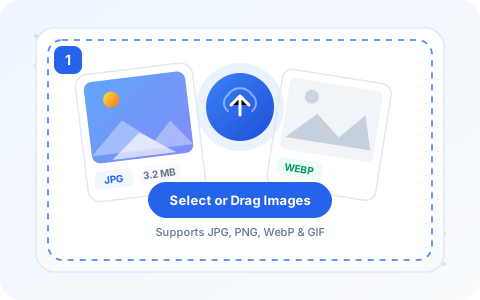
Upload or Drag Photos
Drop your JPG, PNG, WebP, GIF, or AVIF files into the dropzone or click "Select Images" to choose photos from your device.
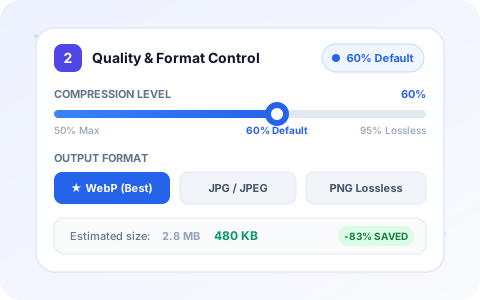
Adjust Quality & Format
Move the continuous quality slider or select presets (Balanced, Lossless, Max Save). Convert formats to next-gen WebP with one click.
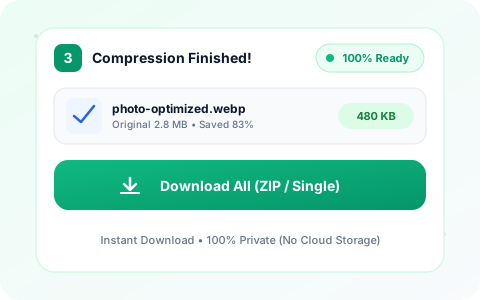
Instant Download
Review your byte savings badge, verify pixel sharpness in the preview modal, and download individually or packaged in a clean ZIP archive.
Original vs Compressed: See the Difference
Drag the interactive slider below to compare original clarity versus the optimized result. Perceptual algorithms eliminate redundant bytes without visible degradation.
Detailed Step-by-Step Instructions
Follow this in-depth walkthrough to achieve maximum compression ratios, maintain crystal-clear sharpness, and take full advantage of built-in features.
Select or Upload Your File
Uploading your pictures is simple and flexible. You can click the prominent "Select Images or Drag & Drop Here" button to open your operating system’s native file picker, or directly drag and drop image files from your desktop, file explorer, or mobile photo gallery onto the dropzone.
Supported Input File Types:
The tool accepts all standard raster image formats: JPG / JPEG, PNG, WebP, GIF, AVIF, BMP, and TIFF.
Batch Quantities & Safeguards:
- Batch Quantity: You can select 1 image or upload batches containing 500+ images simultaneously.
- Memory Safeguards: To prevent browser memory overflows on high-megapixel RAW phone cameras, the tool caps max dimensions safely (4096px for desktop, 3200px for Android, and 2560px for iOS Safari).
- No Paywalls or Hidden Limits: There are no artificial file size caps, no watermarks, and no registration required.
Once uploaded, your images are placed into a local memory queue. A live counter displays the number of queued items, and compression begins automatically in the background.
Automatic In-Browser Processing
Unlike traditional online converters that upload your confidential files to remote cloud servers, CompressImageSize executes 100% locally in your browser's RAM.
Zero Server Uploads
Your files never travel across the internet. They are decoded onto an off-screen HTML5 Canvas directly via your device’s GPU/CPU.
3-Worker Concurrency
To prevent UI stuttering, an asynchronous concurrency queue processes 3 images in parallel, keeping your browser fluid and responsive.
Automatic EXIF & Metadata Sanitization
Photos taken with smartphones frequently contain private EXIF metadata, including GPS coordinates, camera serial numbers, and exposure times. When redrawing the image onto canvas, this hidden tracking data is automatically removed, safeguarding your personal privacy while shedding unnecessary bytes.
*Safety Guarantee: If an already-compressed file would increase in size after re-encoding, the tool's safeguard automatically retains the original bytes so your files never grow larger.
Review & Fine-Tune Your Results
CompressImageSize gives you transparent metrics and real-time control over the compression ratio. Before saving, you can inspect and adjust the results using dedicated controls:
Interactive Quality Slider & Presets
Use the continuous slider (1% to 100%, default 60%) or click quick presets (Max Save, Balanced, Default, High Quality, Lossless). The tool immediately triggers debounced recompression so you see the new file size in real time.
One-Click Format Conversion
Choose Auto (Original), or convert images to JPG/JPEG (optimal for photos), WebP (next-gen compact format), or PNG (for graphics with transparent alpha backgrounds).
Visual Quality Comparison Modal (Side-by-Side & Split Slider)
Click the eye/preview icon on any result row to inspect the original vs compressed image. Switch between a side-by-side view and an interactive draggable split slider to verify sharpness, contrast, and color fidelity before downloading.
Each item in the result list clearly displays the original size, newly compressed size, format tag, and percentage savings badge (e.g. -78%).
Download Your Optimized Output
When you are satisfied with the results, saving your optimized photos takes a single click:
Individual Download
Each row has its own dedicated download pill button featuring the output format tag (JPG, WEBP, or PNG). Clicking it triggers an instant direct download.
Download All as ZIP
When batch-processing multiple pictures, click "Download all images (ZIP)". The integrated client-side JSZip engine packages your files into a single compressed-images.zip archive in seconds.
Standardized File Naming
All downloaded files are automatically named using the clean pattern: {filename}-compressed.{ext} so you never overwrite your original assets by mistake.
What Happens After You Upload?
A transparent look at the exact computational pipeline running securely inside your web browser:
Local Memory Decoupling (FileReader & Blob URL)
When a file is dropped into the uploader, JavaScript reads its binary data via URL.createObjectURL(file). This generates a sandboxed, in-memory reference directly in browser RAM without making any network HTTP requests.
Hardware-Accelerated Rasterization & Dimension Safety
The image is decoded asynchronously into an off-screen HTML5 <canvas> element. High-quality bicubic smoothing algorithms preserve sharpness. If the source resolution exceeds device thresholds (e.g. iOS Safari memory limits), dimensions are proportionally scaled to guarantee browser stability.
Perceptual Quantization & Format Re-Encoding
The canvas context calls canvas.toBlob() with your specified quality value. The browser’s native C++ image codec applies discrete cosine transforms (for JPEG) or VP8 predictive coding (for WebP) to discard high-frequency color variations that the human eye cannot perceive.
Size Verification Guard & Zero-Leak Garbage Collection
The generated blob is verified against the original file size. If the resulting file is unexpectedly larger, the engine discards the compression and retains the original. When you download or click "Clear All", all temporary blob URLs are revoked via URL.revokeObjectURL(), freeing memory instantly.
Why Use CompressImageSize?
Real, practical benefits engineered for students, web developers, creators, and everyday users:
100% Client-Side Privacy
Your sensitive personal photos, passports, or company documents never leave your computer or phone. Zero cloud servers touch your files.
Blazing Fast Execution
Skip slow internet upload queues. Because encoding happens directly on your device CPU/GPU, images compress in milliseconds.
Massive Batch Processing
Queue up to 500+ images in a single session. The 3-worker concurrency queue handles hundreds of files smoothly without browser freeze.
Interactive Comparison
Don't guess the visual impact. Use the split-screen drag slider to compare original versus compressed pixels before saving.
Zero Software Installation
Works straight in Chrome, Safari, Edge, or Firefox across Windows, Mac, Linux, iOS, and Android. No software downloads required.
100% Free Forever
Unlimited compressions without subscription plans, credits, or watermarks stamped onto your images.
Tips for Getting the Best Compression Results
Actionable strategies to maximize file size reduction while preserving crisp visual clarity:
Convert Photographs to WebP for Maximum Space Savings
WebP offers substantially superior lossy compression compared to legacy JPEG. Converting standard phone or camera JPGs to WebP typically reduces file size by an extra 25% to 40% at the exact same perceptual quality.
The 60% to 75% Quality "Sweet Spot"
Digital sensors capture noise and minor color deviations that consume heavy bytes. Setting the quality slider to 60%–75% strips this invisible noise, cutting 70%+ of the file weight while appearing identical to the original when viewed on screens.
Preserve PNG for Transparency; Use JPG/WebP for Photos
If your image contains logos, icons, or a transparent alpha channel, keep the format set to PNG or convert to modern WebP (which fully supports transparency). Converting a transparent PNG to JPEG will fill the transparent background with solid white.
Inspect Fine Text Sharpness with the Split Comparison Slider
Before submitting images for official documents or ecommerce catalogs, open the compare modal and drag the split slider across fine text, barcodes, or detailed textures to ensure nothing has blurred.
Common Problems & Quick Solutions
Encountering an unexpected result? Here are simple fixes for realistic scenarios:
Problem: "File cannot be uploaded or is rejected"
Solution: Verify that your file is an image format (JPG, PNG, WebP, GIF, AVIF, BMP, or TIFF). Documents such as PDF, Word, or corrupted binary files cannot be parsed by canvas and will be skipped.
Problem: "The compressed file size is not smaller or shows 0% savings"
Solution: Your image may already be heavily compressed by another utility or saved at very low quality. To reduce it further, either slide the quality down to 40%–50% or convert the format to WebP. Note that our built-in safeguard prevents outputting an inflated file size.
Problem: "Browser feels sluggish during a huge batch"
Solution: Processing hundreds of high-resolution camera images simultaneously consumes significant device RAM. If your device has limited memory, close unused browser tabs or upload images in batches of 50 to 100 files.
Problem: "ZIP file download does not trigger on mobile"
Solution: Some mobile browsers (such as certain in-app browsers or restricted Safari configurations) block programmatic ZIP blob triggers. Simply tap the individual download button next to each image to save them directly to your camera roll.
Frequently Asked Questions
Quick answers about how our image compression technology functions:
Optimize Your Photos in Seconds
Open the compressor now and compress your pictures with maximum clarity and zero privacy risk. 100% free, unlimited, and private.
Open Image Compressor